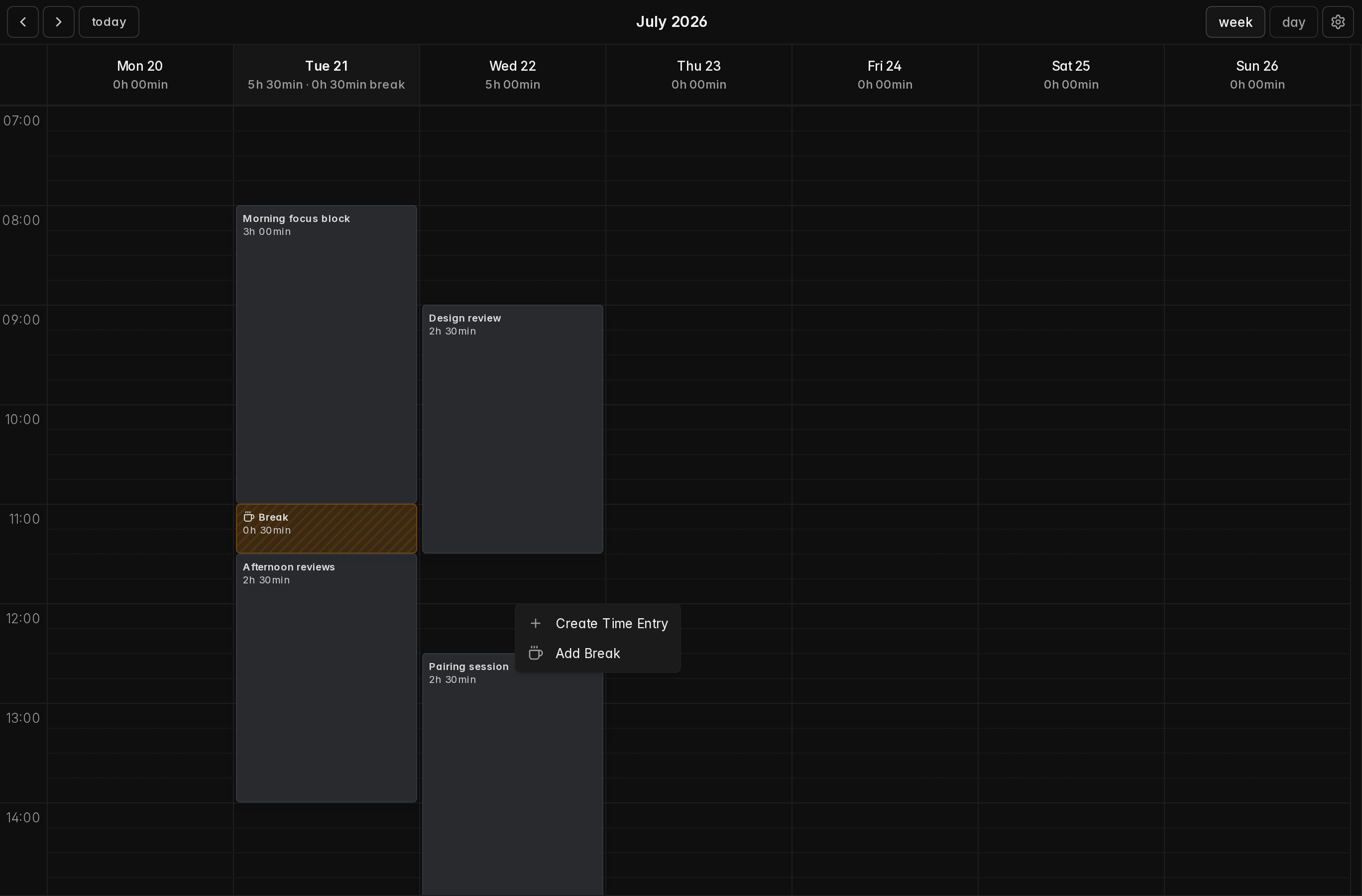
solidtime v0.18.0 introduces Breaks, a proper way to track the pauses between your work sessions.
Breaks are time entries with a special type, so they don't count towards your work time and can be filtered separately. Dashboard statistics only count work time, day totals show breaks on their own, and reports let you include or exclude them.
Take a break with one click


While a timer is running, hit the coffee-cup Take a break button in the time tracker. It stops your work entry and immediately starts a break, with no fiddling with timestamps. No timer running? Start a break directly from the tracker menu.


When you're back, one click on Resume ends the break and starts a new work entry with the description, project and everything else from the entry you interrupted, so picking work back up costs you nothing.
Separate from work time, everywhere


On the Time page, break entries are labeled with a coffee cup and each day shows its break time separately from the work total. In Reporting, you can filter breaks in or out to get exactly the numbers you need.
Breaks in the Timesheet
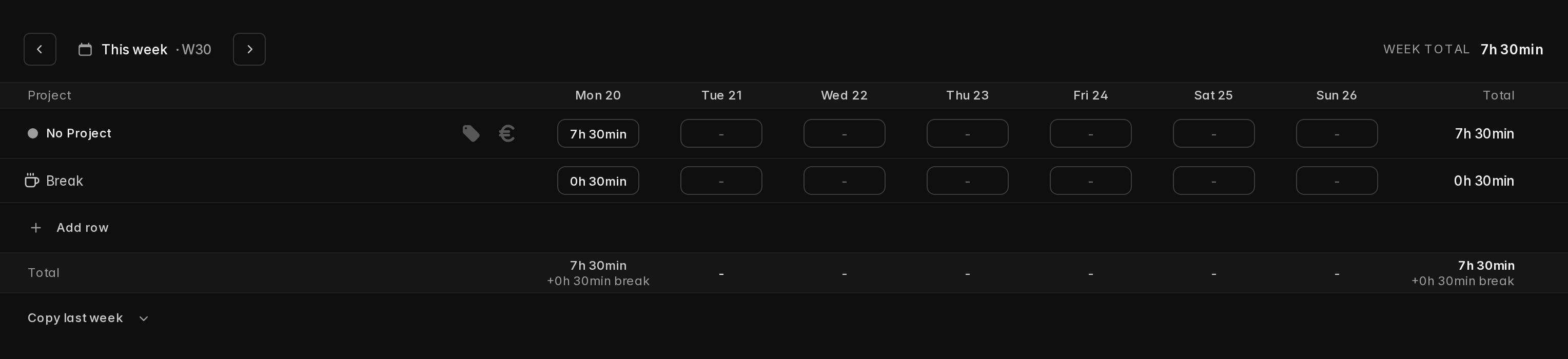
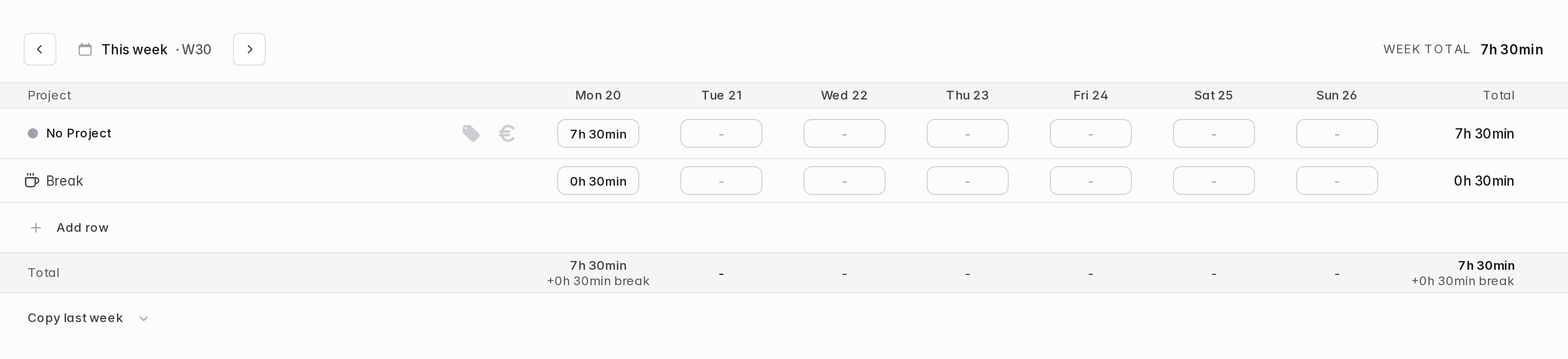
The Timesheet view gets a pinned Break row at the bottom of the grid. Type in a duration and solidtime automatically places the break in a gap between your work entries. If other entries need to move to make room, a confirmation modal lets you approve or fine-tune the placement first.
Breaks in the Calendar
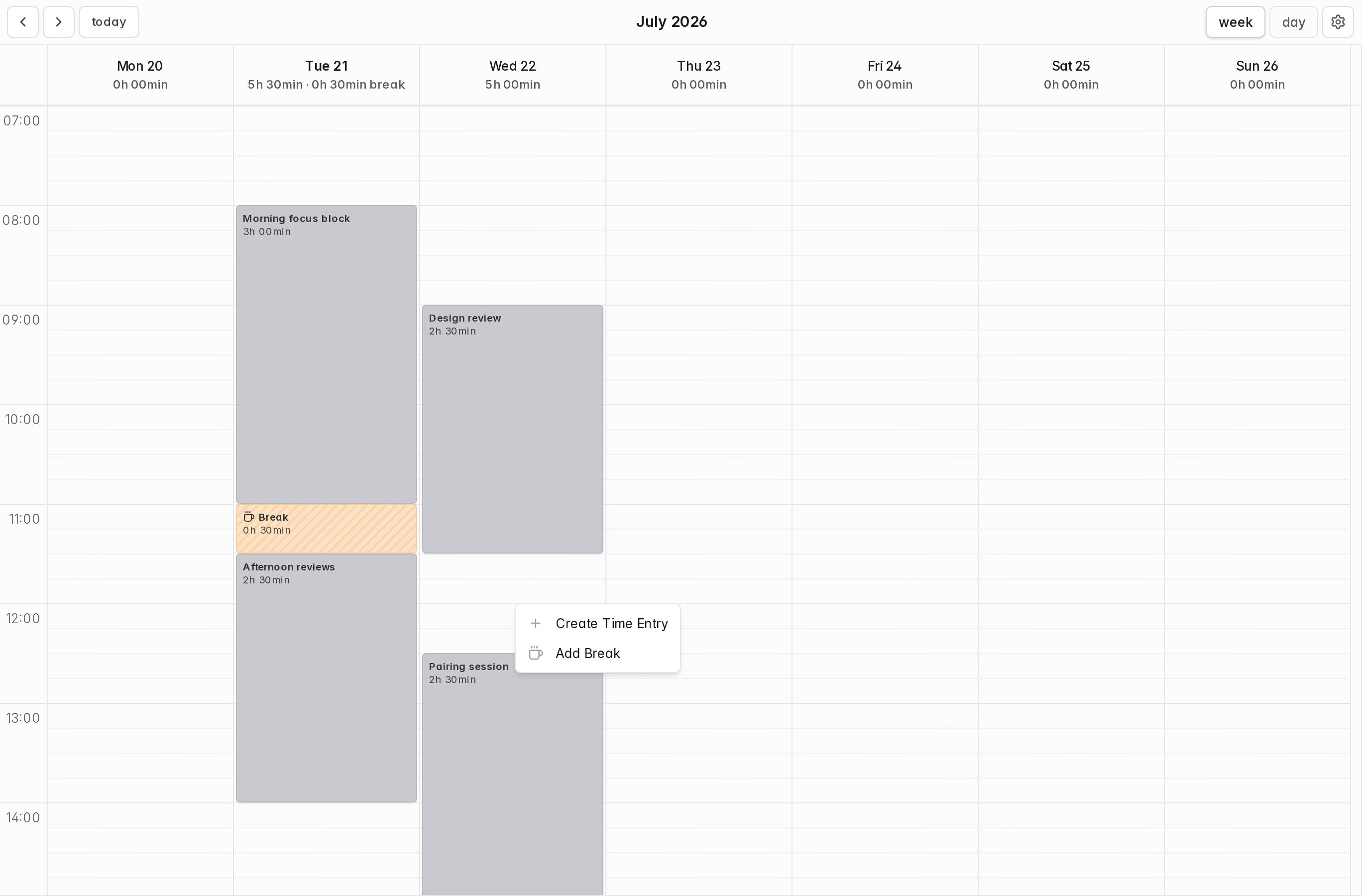
The calendar view fully supports breaks, too: they render with a hatched texture and can be dragged, resized and edited just like regular time entries. Right-click an empty slot to add one.
And if a break ends up more than 30 minutes away from the nearest work entry, solidtime flags it as misaligned, a small warning that helps you keep your records plausible without ever blocking you.
How to enable it


Break tracking is off by default. Owners and admins can turn it on under Organization Settings → Allow tracking breaks. Once enabled, everyone who can track time can track breaks.